


The Best Image Compressor Extension for Fast, Lossless Photo Compression
Big image files are one of those problems you don't notice until they cost you something. A page that loads slower than it should. An upload that gets rejected for being too large. An email attachment that just won't send. An image compressor extension fixes that from right inside your browser, so you're not hunting down a separate app every time a photo needs to shrink. Search “reduce image size extension” and you'll get dozens of results, but most people aren't looking for the fanciest option — they want one that works the first time, costs nothing, and doesn't wreck the photo in the process.
That's really the whole appeal of a good image compressor extension free enough to install without a second thought and simple enough that you don't need a manual to figure it out. Tools like Toolspy exist for exactly that reason. They take something that used to mean opening software, uploading files to a website, and waiting around, and turn it into a single click.
This guide walks through what an image compressor extension actually does, how the compression itself works, what to look for depending on your browser, and how to shrink photos without them coming out looking worse for it.
What Is an Image Compressor Extension?
An image compressor extension is a browser add-on that reduces an image's file size directly from your browser — no software downloads or third-party uploads required. It works in one click, shrinking JPEG, PNG, and WebP files while preserving visual quality, so pages, uploads, and emails move faster.
Some people search for this as an image optimizer extension. Others just want something to shrink image extension files down before an upload deadline. It's the same tool either way — a small image compressor browser extension sitting in your toolbar, waiting for the moment a file's too big to use as-is.
How Does an Image Compressor Extension Work?
Compression, at its core, is about reducing how much data is needed to store an image while keeping it visually close to the original. There are two main ways this happens, and the difference matters if quality is something you actually care about.
Lossy vs. Lossless Compression
Lossy compression strips out some image data permanently, usually the kind of detail the human eye barely registers anyway — subtle gradients, fine texture in busy areas of a photo. It gets you the smallest possible file, which is why it's the default for most JPEGs on the web. Lossless compression takes a different approach: it shrinks the file without throwing anything away. The result is usually a bit larger than a lossy file, but the image comes out pixel-for-pixel identical. A proper lossless image compressor extension gives you the choice between the two instead of forcing one method on every file, which matters a lot if image compressor extension quality is the thing you're actually optimizing for, not just size.
Local Processing vs. Cloud Processing
Here's a detail a lot of people skip past: where does the compression actually happen? Some extensions process the image locally, meaning the file never leaves your device. Others send it to a server, compress it there, and hand it back. Local processing tends to be faster and more private. Cloud-based tools can sometimes squeeze out slightly better results, but you're trading that for an upload-and-download round trip. If you're working with client photos, internal documents, or anything sensitive, local-first is the safer default.
Types of Image Compressor Extensions by Browser
Not every extension behaves the same way across browsers, and each platform has its own quirks worth knowing before you install anything.
Image Compressor Chrome Extension
Chrome has the biggest extension library by a wide margin, and an image compressor Chrome extension usually installs straight from the Chrome Web Store in a few clicks. Since Chrome runs on Windows, Mac, and Chromebooks alike, it's generally the safest starting point if you're not sure which browser you'll be compressing images in most.
Image Compressor Firefox Extension
Firefox runs its own separate marketplace, so an image compressor Firefox extension has to be built specifically for Firefox's system rather than ported over from Chrome. Firefox users also tend to care more about privacy than average, so it's worth checking whether an extension processes files locally before installing it.
Image Compressor Safari Extension
Safari has always been the stricter platform. An image compressor Safari extension often goes through Apple's review process and gets distributed via the Mac App Store rather than a simple add-ons page. That means fewer options than Chrome or Firefox, but the ones that do make it through are generally well vetted.
Image Compressor Edge Extension
Edge runs on the same Chromium engine as Chrome, so an image compressor Edge extension can usually be installed from the Edge Add-ons store — and in a lot of cases, directly from the Chrome Web Store too. That gives Edge users nearly the same selection Chrome users get.
Image Compressor Opera Extension
Opera is also Chromium-based under the hood, and most Chrome extensions run there with little to no adjustment. An image compressor Opera extension typically installs through Opera's own marketplace, though some users just add Chrome Web Store extensions manually with a small compatibility add-on.
Whichever browser you land on, setup on both an image compressor extension windows machine and an image compressor extension mac is usually done in under a minute — click install, pin it to the toolbar, done.
Key Features to Look For in the Best Image Compressor Extension
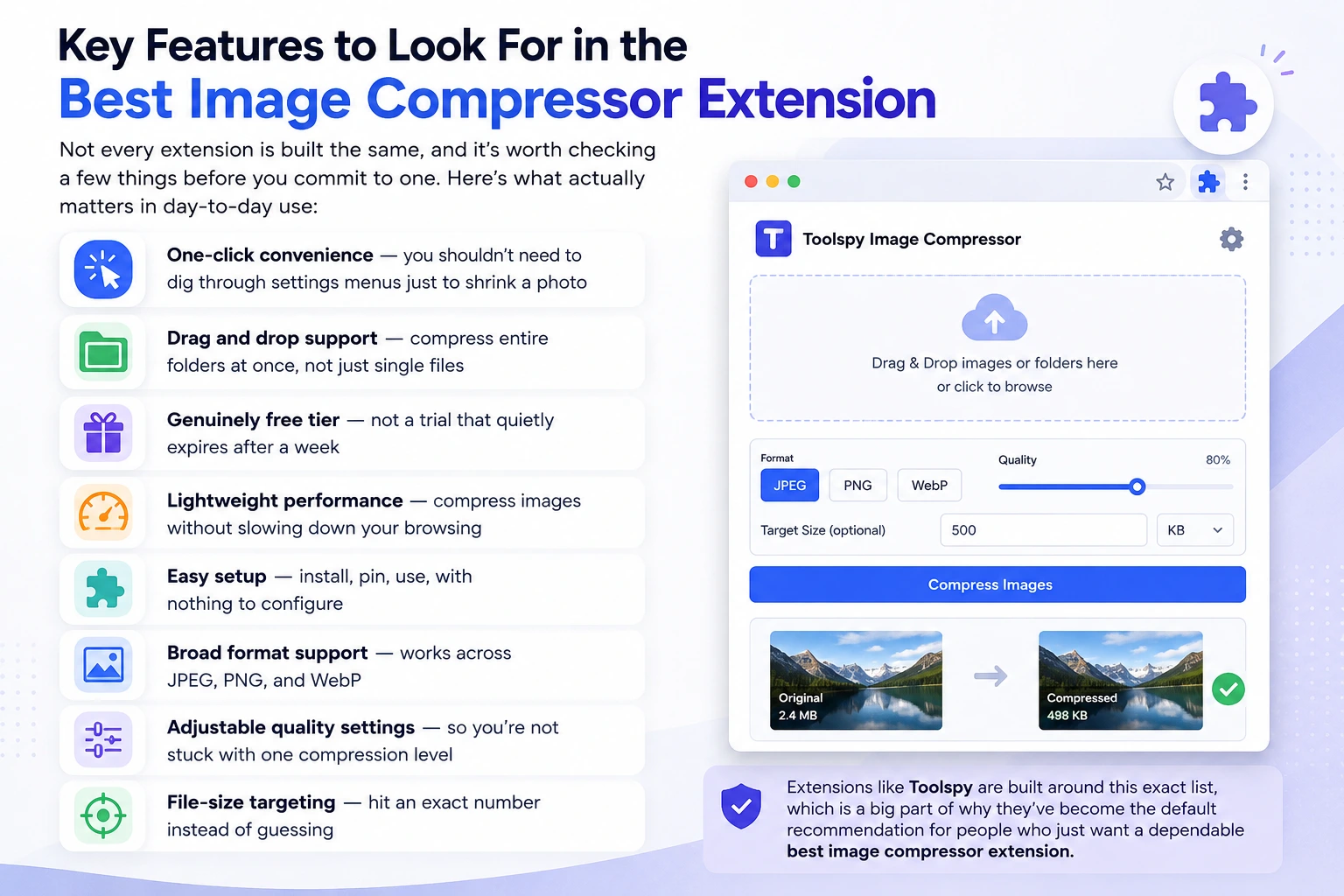
Not every extension is built the same, and it's worth checking a few things before you commit to one. Here's what actually matters in day-to-day use:
- One-click image compressor extension convenience — you shouldn't need to dig through settings menus just to shrink a photo
- Drag and drop image compressor extension support for entire folders at once, not just single files
- A genuinely free image compressor extension tier, not a trial that quietly expires after a week
- Lightweight image compressor extension performance that doesn't slow down the rest of your browsing
- Easy image compressor extension setup — install, pin, use, with nothing to configure
- Broad format support across JPEG, PNG, and WebP
- Adjustable quality settings so you're not stuck with one compression level
- File-size targeting, so you can hit an exact number instead of guessing
Extensions like Toolspy are built around this exact list, which is a big part of why they've become the default recommendation for people who just want a dependable best image compressor extension without spending time comparing five different tools first.
Image Compressor Extension vs. Online Tools vs. Desktop Software
There are really three routes here: a browser extension, a web-based image compressor extension online tool you visit manually, or dedicated desktop software.
Desktop software gives you the most control, but it comes at a cost — installing it, keeping it updated, and breaking your workflow every time you need to open it just to shrink one photo. Online tools skip the install, but you're still navigating to a website, uploading a file, waiting, and downloading the result, which gets old fast if you're doing it more than once. A browser extension cuts out almost all of that. It's already sitting in your browser, ready to work on whatever you're viewing or about to upload, and it finishes in seconds without pulling you out of your current tab. If speed matters to you day to day, the fastest image compressor extension option is almost always the one you never have to leave your browser to use.
How to Compress Images Without Losing Quality
The biggest worry people have with compression is that the photo will come out blurry or blocky. With the right approach, that's avoidable almost entirely.
Match the format to the content first. A PNG compressor extension setting works best for graphics, logos, and anything with transparency or hard edges, while a JPEG compressor extension setting is generally the better fit for photographs with lots of natural color variation. When you're choosing a compression level, avoid jumping straight to the most aggressive setting — most images can lose 60 to 80 percent of their file size before anyone notices a difference. If quality is non-negotiable, like a portfolio shot or something headed for print, use lossless mode instead. A solid compress images without losing quality extension will usually show you a before-and-after preview so you're not guessing. Whether you're working with a single portrait or running it through a general photo compressor extension for a whole shoot, Toolspy is built to protect quality by default, so you're not stuck manually fine-tuning settings just to avoid a blurry result.
How to Compress Images to a Specific File Size (Like 20KB)
Sometimes “smaller” isn't precise enough — you need a file under an exact limit. This is common with web forms, ID photo uploads, and ad platforms that enforce strict specs, which is exactly why “image compressor to 20kb” is such a frequently searched phrase. A good extension lets you type in a target size directly, and it adjusts the compression automatically until the file fits, instead of you re-compressing the same image five times trying to guess the right percentage.
Compressing Multiple Images at Once
If you're only shrinking one photo every couple of months, doing it by hand is fine. But for agencies, online sellers, and photographers moving through dozens or hundreds of images, one-at-a-time isn't realistic. A real bulk image compressor extension should let you drag in a whole folder and apply the same settings across everything at once. That kind of batch compress images extension functionality is what turns an hour of manual work into something that runs quietly in the background while you do something else. Even a simple compress image extension with basic batch support saves a meaningful chunk of time once you're processing more than a handful of files regularly.
Best Practices for Using an Image Compressor Extension for Your Website
Image size has a direct effect on page load speed, which affects both how visitors experience your site and how it ranks. Search engines weigh Core Web Vitals — metrics like Largest Contentful Paint — into their rankings, and oversized images are one of the most common reasons a page scores badly.
If you're running a website, compress images before they ever hit your CMS rather than assuming the platform will handle it for you, because most don't. WordPress, Shopify, and Wix sites in particular tend to accumulate bloated media libraries over time, and that's usually the first thing worth cleaning up when a site feels sluggish. Use WebP where you can, since it typically compresses smaller than JPEG or PNG at a similar quality level. And if resizing dimensions is part of your workflow too, an image resizer extension paired with compression covers both problems in one pass. For anyone managing a website regularly, an image compressor extension for website use like Toolspy fits naturally into that pre-upload step, letting you compress a whole batch of photos before they ever touch your media library.
Why Toolspy Is a Top Image Compressor Extension Choice
Among the options out there, Toolspy stands out for solving the exact problems covered in this guide — quality retention, speed, and not making you think too hard about settings. It handles one-click compression without a learning curve, supports the formats web teams actually use day to day, and works just as well on a single hero image as it does on an entire folder of product photos. For anyone who's been burned by an extension that quietly wrecked image quality or made their browser feel sluggish, it's a strong, low-effort default — and a genuinely solid answer if you've been searching for the best free image compressor extension rather than one hiding behind a paywall.
How to Install
Setup is usually under a minute. Use the steps for your browser, then pin the extension so it's one click away.
Install on Chrome / Edge / Opera
- Open the extension download page for your browser.
- Click “Add to browser”.
- Pin the extension to your toolbar for quicker access.
Install on Firefox
- Open the Firefox Add-ons page.
- Click “Add to Firefox”.
- Confirm permissions when prompted.
Install on Safari
- Open the Safari extension page (App Store if required).
- Install and enable the extension in Safari Settings → Extensions.
How to Use
Once installed, compressing images from the current page follows a short, repeatable workflow.
Compress images from a page
- Open the web page that contains the images.
- Click the Toolspy extension icon.
- Select images (or use Select All / Clear).
- Choose a preset or fine-tune quality and output format.
- Optional: enable resize / EXIF removal / progressive JPEG.
- Compress and download the results.
Recommended Workflow
For day-to-day use — especially when you're optimizing assets for a site or CMS — this three-step flow keeps things fast and consistent:
- Scan — Run a scan on the current tab to collect image URLs and show thumbnails.
- Select — Pick the images you want. Use bulk actions when you're working with many items.
- Download or optimize — Download files/ZIP, or open the selection in Toolspy to compress or convert with your preferred preset.
Tip: start with a Balanced or Web Optimized preset, then only fine-tune quality, format, or target size when a file still misses a platform limit.
Frequently Asked Questions
How do I use an image compressor extension?
Install it from your browser's store, pin it to your toolbar, then either right-click an image to compress it or drag files straight into the extension's popup. Most tools finish the job in a few seconds with nothing else to set up.
Is an image compressor extension safe?
Generally, yes, as long as it comes from a reputable source. Check whether it processes images locally or sends them to a server, glance at the permissions it's asking for, and stick to extensions listed on official browser stores with a clear privacy policy.
Can you compress images without losing quality?
Yes. Lossless compression reduces file size with zero visible loss, and even moderate lossy compression is usually imperceptible to the eye, especially for anything headed to the web rather than a printer.
What is the best free image compressor extension?
It depends a bit on your browser and how you work, but look for one with batch support, broad format compatibility, and no hidden daily cap. Toolspy checks those boxes without asking for a credit card.
How do I compress multiple images at once?
Pick an extension with batch or bulk support, then select or drag in several files together. It applies your chosen settings to the whole group at once instead of making you repeat the process file by file.
Why should I compress images before uploading?
Smaller files upload faster, load quicker for anyone viewing your site or email, use less storage, and are less likely to get rejected by platforms with strict size limits.
Should I use an image compressor extension or an online tool?
An extension is quicker for regular use since it's already built into your browser. An online tool is fine for the occasional one-off, but you're manually visiting a site and uploading a file every single time, which adds up.
How do I compress images to a specific file size?
Look for an extension that lets you enter a target size, like 20KB, directly. It handles the adjustment automatically instead of you guessing at compression percentages.
Does an image compressor extension slow down my browser?
A well-built, lightweight one shouldn't. If you notice real lag after installing an extension, that's usually a sign it's poorly optimized rather than something inherent to compression itself.
What image formats can I compress with an extension?
Most extensions handle JPEG, PNG, and WebP at minimum, and some cover GIF as well. It's worth checking the listing before assuming a specific format is supported.
How should I compress images for my website?
Compress before uploading rather than after, lean on WebP where your platform supports it, and pick a moderate compression setting that balances file size against visual quality.
Should I use a free or paid image compressor extension?
Free versions handle most everyday needs just fine, including basic batch compression. Paid tiers only really make sense if you need unlimited bulk processing, priority speed, or dedicated support at scale.
Conclusion
Shrinking images doesn't have to mean extra software, manual uploads, or a hit to quality. A good image compressor extension handles all of it — lossless or lossy, one file or an entire batch — right inside your browser, in a matter of seconds. Whether you're speeding up a website, prepping product photos, or just trying to squeeze under an upload limit, the right extension turns a repetitive chore into something you barely think about. If you're not sure where to start, Toolspy covers the essentials most people actually need: fast, free, quality-preserving compression that fits into whatever browser you're already using.