

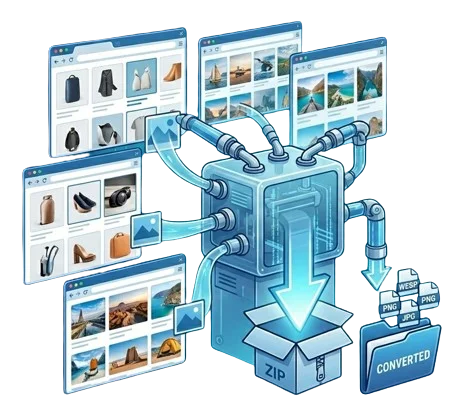
The Best Image Downloader Extension for Saving Photos Fast
You've probably been there: you find the perfect image online — a reference photo, a product shot, an Instagram post you want to save — and then you're stuck right-clicking one file at a time, or worse, taking a screenshot and cropping it later just to get something usable. An image downloader extension solves that annoyance directly from your browser. No screenshots, no guessing at file names, no losing quality along the way.
For content creators, designers, students pulling research images, and online sellers building out product pages, this isn't a nice-to-have. It's one of those small tools that quietly saves hours over a month, the kind of thing you don't think about until you go a day without it and remember how tedious saving images used to be. Whether you need a single high-res photo or a way to download images with extension support across an entire page at once, the right tool turns a repetitive task into something that takes seconds. A genuinely free image downloader extension, like Toolspy, is often all it takes to stop relying on screenshots for good.
If you're comparing options, it's worth spending a few minutes checking whether an image downloader extension free of hidden limits actually delivers on that promise before you commit to it. A lot of tools market themselves as free and then cap you at a handful of downloads a day, which defeats the purpose if you're working with any real volume.
This guide covers what an image downloader extension actually does, how to pick one for your browser, and how to get full-quality images — including from sites like Instagram and Pinterest — without the extension slowing you down or putting your files at risk.
What Is an Image Downloader Extension?
An image downloader extension is a small browser add-on that lets you save one or more images from any webpage directly to your device, without manually right-clicking and choosing “Save As” for each one. It typically adds a button or menu option that detects every image on a page and lets you select and download them in a single action, preserving original quality.
Some people look for this specifically as a photo downloader extension, others just want a fast way to grab a handful of files without opening a new tab for each one. Either way, it's the same idea: a lightweight image downloader browser extension sitting quietly in your toolbar until you need it. Think of it less as a separate app and more as an extra button that was always missing from your browser — one that finally lets you treat a whole page of images as a single batch instead of dozens of individual clicks.
How Does an Image Downloader Extension Work?
Most extensions scan the current page's HTML for image elements — everything from thumbnails to full-size photos — and present them in a small popup or gallery view. From there, you pick what you want and download it, either as individual files or as a zipped folder if you're grabbing several at once.
Detection and Selection
Good extensions don't just grab the small preview version of an image; they trace back to the original source file, which matters a lot if you're after full resolution image downloader results rather than a compressed thumbnail. This is also where automatic image downloader extension tools come in — instead of manually picking images one by one, they detect everything on a page and let you filter by size, format, or dimensions before downloading. That filtering step matters more than people expect: a page might have fifty images loaded, but only six of them are the actual content you want, with the rest being icons, ads, or navigation graphics.
Saving and Organizing
Once you've selected your images, most extensions let you choose a destination folder, rename files in bulk, or sort them automatically by the page they came from. Some go further with drag and drop image downloader functionality, letting you drag a photo straight from the page into a folder on your desktop without opening a download menu at all. For anyone downloading regularly — researchers building a reference library, or designers collecting inspiration — this kind of automatic organization saves almost as much time as the download itself, since you're not left sorting through a cluttered downloads folder afterward.
Speed and Background Processing
A well-built extension handles this without freezing your browser tab or forcing you to wait around watching a progress bar. Downloads should process in the background, letting you keep browsing while a batch finishes behind the scenes. This is a small detail, but it's usually the difference between an extension that feels fast and one that feels like it's fighting you.
Image Downloader Extensions by Browser
Not every extension is built for every browser, and each one has its own installation quirks worth knowing before you commit to one.
Image Downloader Chrome Extension
Chrome has the largest extension library, so an image downloader chrome extension is usually the easiest to find and the most frequently updated. Because Chrome runs across Windows, Mac, and Chromebooks, this tends to be the safest first choice if you're not sure which browser you'll be using most. Searching “image downloader extension chrome” will turn up the widest range of options by far, which is both a benefit and a small hassle — more choice means more time spent comparing reviews before picking one.
Image Downloader Edge Extension
Edge runs on the same Chromium engine as Chrome, so an image downloader edge extension typically installs from the Edge Add-ons store, and in many cases you can add Chrome Web Store extensions directly too. This makes Edge one of the more flexible options if you've already found a Chrome extension you like and want the same functionality without switching browsers.
Image Downloader Firefox Extension
Firefox has its own separate add-ons marketplace, meaning an image downloader Firefox extension needs to be built specifically for Firefox rather than adapted from Chrome. Firefox users also tend to be more privacy-conscious, so it's worth checking what permissions an extension requests before installing, and reading through recent reviews for anything that looks like it's tracking more than it needs to.
Image Downloader Safari Extension
Safari is the strictest of the group. An image downloader Safari extension usually goes through Apple's review process and is often distributed through the Mac App Store rather than a simple add-ons page, which means fewer choices but generally more vetted ones. If you're on Safari and can't find the exact extension you were looking for, that's often why — Apple's review process filters out a fair number of tools that are readily available elsewhere.
Image Downloader Opera Extension
Opera is Chromium-based as well, and most Chrome extensions run there with minimal fuss. An image downloader Opera extension typically installs from Opera's own add-ons page, though some users just bring in Chrome Web Store extensions manually using a small compatibility add-on that Opera provides for exactly this purpose.
Key Features to Look For in the Best Image Downloader Extension
Before installing anything, it helps to know what separates a genuinely useful tool from one that just clutters your toolbar. Not every image downloader extension features list is worth caring about — plenty of tools pad their store listing with features nobody actually uses. Here's what matters day to day:
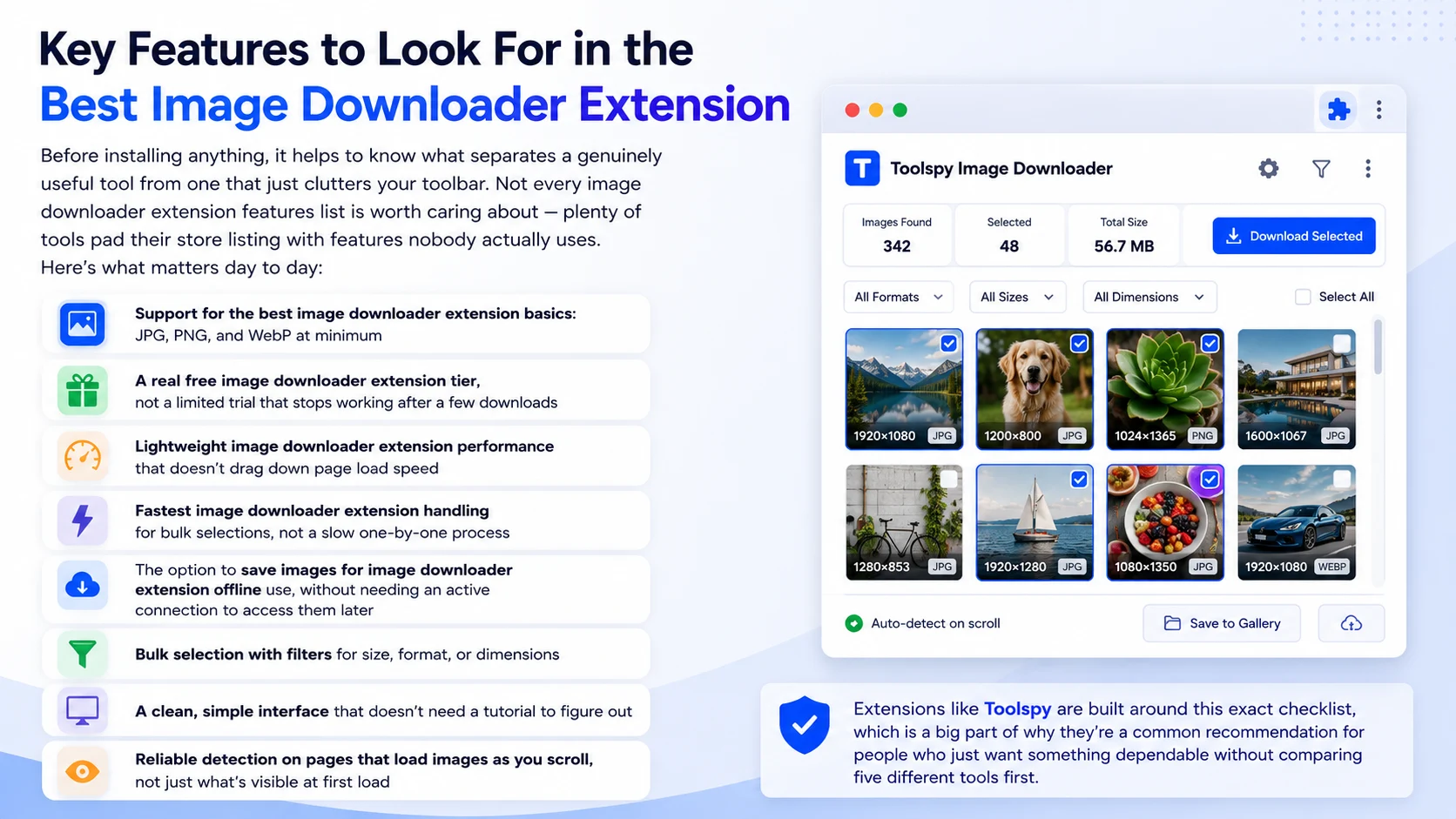
- Support for the best image downloader extension basics: JPG, PNG, and WebP at minimum
- A real free image downloader extension tier, not a limited trial that stops working after a few downloads
- Lightweight image downloader extension performance that doesn't drag down page load speed
- Fastest image downloader extension handling for bulk selections, not a slow one-by-one process
- The option to save images for image downloader extension offline use, without needing an active connection to access them later
- Bulk selection with filters for size, format, or dimensions
- A clean, simple interface that doesn't need a tutorial to figure out
- Reliable detection on pages that load images as you scroll, not just what's visible at first load
Extensions like Toolspy are built around this exact checklist, which is a big part of why they're a common recommendation for people who just want something dependable without comparing five different tools first. It's easy to get distracted by extras like built-in editing or cloud storage syncing, but for most people, the core download experience is what actually determines whether an extension earns a permanent spot in the toolbar or gets uninstalled within a week.
Image Downloader Extension vs. Online Tools
You generally have two options here: a browser extension, or a separate image download manager extension you access as a website, pasting in a URL each time you want to grab an image.
Online tools work, but they interrupt your flow — you copy a link, open a new tab, paste it in, wait, then download the result. Do that fifteen times in an afternoon and it adds up to a surprising amount of wasted time. An extension skips all of that. It works on the page you're already viewing, detects everything there automatically, and finishes in a couple of clicks. For anyone downloading images regularly rather than as a rare one-off, the extension route saves a meaningful amount of time over a week or a month, and it removes the temptation to just screenshot something instead because the “proper” method felt like too much effort.
How to Download Full Resolution and HD Images
A common frustration is downloading an image only to find it's a tiny, blurry preview rather than the actual file. A capable hd image downloader extension traces back to the original source rather than grabbing whatever thumbnail is displayed on the page, which is the difference between a usable photo and one you can't actually use for print or a portfolio piece.
If you need a specific format, look for one that clearly supports png image downloader extension and jpg image downloader extension options rather than converting everything to a single format automatically — converting can sometimes affect image downloader extension quality, especially with PNGs that rely on transparency for logos or graphics. A genuine full resolution image downloader will show you the original file dimensions before you download, so you're not left guessing whether you actually got the high-res version or just a slightly larger version of the same compressed preview. Toolspy handles this by pulling the source file directly rather than compressing or resizing anything along the way, which matters most for anyone working with images professionally rather than just casually saving something for later.
Bulk and Batch Image Downloading
If you only need one image now and then, right-clicking is fine. But for researchers pulling dozens of reference images, e-commerce sellers pulling product photos, or content creators building a swipe file, doing this one at a time isn't realistic — and honestly, it's the kind of task that makes people give up halfway through. A real bulk image downloader extension should let you select everything on a page — or even across multiple pages — and save it all in one action.
This is where batch image downloader extension functionality actually earns its keep, and a mass image downloader extension built for this specific use case can turn what would be an hour of clicking into something that finishes in the background while you keep working on something else entirely. The best implementations let you preview thumbnails before committing, so you're not stuck sorting through a folder of unwanted images afterward just because the extension grabbed everything indiscriminately.
Downloading Images from Instagram and Pinterest
Social platforms are a special case, since neither Instagram nor Pinterest makes it easy to save images the normal way. Both platforms load content dynamically, wrap images in layers of overlays and scripts, and generally aren't designed with “save this for later” in mind — they'd rather you stay on the app.
An image downloader extension for instagram typically needs to work around how the platform loads images dynamically as you scroll, detecting new photos as they appear rather than only scanning the page once when it first loads. The same applies to an image downloader extension for pinterest, where pins often link out to a much larger original image than what's shown in the grid view — the version you see while browsing is rarely the full file the pin actually points to.
A solid social media image downloader extension will handle both of these situations without extra steps, letting you save a profile's worth of photos or a full board of pins without manually opening each post first. Just keep copyright and platform terms in mind — downloading for personal reference, mood boards, or inspiration is common and generally fine, but redistributing someone else's content without permission or credit is a different matter entirely, and worth being careful about regardless of how easy the tool makes it technically.
Downloading Images From Any Website
Beyond social platforms, a well-built extension should work reliably on more or less any site — blogs, stock photo pages, product listings, portfolios, news articles, wherever an image happens to live. This is where a website image downloader extension earns its keep for researchers, students, and marketers pulling reference material from a wide range of sources rather than one platform.
Whether you're grabbing a single competitor product photo or you need to download images with extension support across an entire gallery page, the process should stay the same regardless of which site you're on. Toolspy is built to work consistently across most standard websites without needing site-specific workarounds, which is exactly what you want if your work involves jumping between dozens of different sites in a single session rather than sticking to one or two familiar platforms.
Is It Safe to Use an Image Downloader Extension?
This is a fair question, and worth taking seriously before installing anything that touches your browsing activity. Check what permissions the extension requests — a legitimate image downloader extension should only need access to view and save images on pages you visit, not your browsing history, your clipboard, or unrelated site data. If a simple download tool is asking for permissions that sound more like a browser-monitoring tool, that's worth treating as a red flag.
Stick to extensions listed on official browser stores, read recent reviews for complaints about ads or unwanted behavior, and check when the extension was last updated — an add-on that hasn't been touched in years is more likely to have compatibility issues or unpatched security gaps. None of this takes more than a few minutes, and it's a reasonable habit to build before installing any extension, not just this kind.
Common Mistakes to Avoid When Downloading Images
A few habits tend to cause more frustration than they save time. Downloading every image on a page indiscriminately, instead of filtering first, usually just means spending extra time deleting icons and ad graphics afterward. Skipping the permissions check before installing is another one — most people install first and wonder about privacy later, which is backwards. And relying on screenshots out of habit, even after installing a proper extension, defeats the entire point, since a screenshot will always be lower quality than the original file. Once you've got a reliable extension set up, it's worth actually using it instead of falling back on old habits out of convenience.
Why Toolspy Is a Top Image Downloader Extension Choice
Among the crowded field of options, Toolspy stands out by focusing on the basics that actually matter: full-resolution downloads, real bulk support, and a genuinely free tier that doesn't quietly stop working after a handful of uses. It handles single images and entire batches with the same one-click simplicity, works across the major formats people actually need, and doesn't ask for more browser access than the job requires.
For anyone tired of extensions that grab a blurry thumbnail instead of the real file, or that quietly throttle you after a few downloads, it's a dependable, low-effort default — the kind of tool you install once and genuinely keep, rather than uninstalling a week later out of frustration.
How to Install
Setup is usually under a minute. Use the steps for your browser, then pin the extension so it's one click away.
Install (Chrome/Edge/Opera)
- Open the extension download page.
- Click “Add to browser”.
- Pin the extension for quick picking.
Install (Firefox)
- Open the Firefox Add-ons listing.
- Click “Add to Firefox”.
- Confirm permissions when prompted.
Install (Safari)
- Install from the Safari extension page (App Store if needed).
- Enable in Safari Settings → Extensions.
How to Use
Once installed, downloading images from the current page follows a short, repeatable workflow.
Download images from a page
- Open the page you want to scan.
- Click the Toolspy extension icon.
- Click Scan page.
- Select images (All / Clear available).
- Download selected or download ZIP.
- Optional: open selections in Toolspy to compress/convert.
Recommended Workflow
For day-to-day collecting — references, product shots, or inspiration boards — this three-step flow keeps things fast and consistent:
- Scan — Run a scan on the current tab to collect image URLs and show thumbnails with dimensions.
- Select — Pick the images you want. Use bulk actions when you're working with many items, and skip icons or ads.
- Download or optimize — Download selected files or a ZIP, or open the selection in Toolspy to compress or convert if you need smaller assets next.
Tip: check dimensions in the selection UI before downloading so you grab the full-res source instead of a low-res preview.
Frequently Asked Questions
How do I download images with a Chrome extension?
Install the extension from the Chrome Web Store, pin it to your toolbar, then click it on any page to see all available images. Select the ones you want and download them individually or as a batch, whichever the situation calls for.
What is the best image downloader extension?
The best option depends on your needs, but look for full-resolution downloads, real bulk support, and broad format compatibility. Toolspy covers all three without a paywall, which makes it a strong default choice for most people.
Is there a completely free image downloader extension?
Yes — several extensions offer full functionality at no cost, without limiting you to a handful of downloads before asking for payment or an upgrade.
How do I download multiple images at once?
Look for an extension with bulk or batch selection. Most let you check the images you want from a gallery view and download them all together, often as a single zipped file for convenience.
Can I bulk download images from a website?
Yes, as long as the extension supports bulk or batch downloading. It will typically scan the entire page, list every image found, and let you select and save several at once instead of one by one.
Is an image downloader extension safe to use?
Generally yes, provided it's from an official browser store and only requests permissions relevant to viewing and saving images. Avoid anything asking for broader access than that, and check reviews before installing.
Which is the fastest image downloader extension?
Speed usually comes down to how efficiently an extension handles bulk selections rather than downloading one file at a time in sequence. Lightweight, well-optimized extensions noticeably outperform bloated ones on this front.
How do I download full resolution or HD images?
Use an extension that pulls the original source file rather than a page thumbnail. Good tools will show you the actual image dimensions before you download, confirming you're getting the full-size version and not a compressed copy.
Can I download images from Instagram with an extension?
Yes, with an extension built to handle Instagram's dynamic loading. It needs to detect new images as you scroll rather than only scanning what's visible when the page first loads.
Can I download images from Pinterest with an extension?
Yes — a good extension will pull the full original image a pin links to, rather than the smaller preview shown in Pinterest's grid layout, which is usually much lower resolution.
Does an image downloader extension slow down my browser?
A well-built, lightweight one shouldn't. If you do notice lag after installing one, that usually points to poor optimization rather than something inherent to the task itself.
How do I use an image downloader extension easily?
Install it, pin it to your toolbar, and click it on any page with images you want. Most tools are designed to work with no configuration needed beyond that first click.
What image formats does an image downloader support?
Most support JPG, PNG, and WebP at minimum, with some also handling GIF. Check the extension's store listing if you need a specific, less common format before relying on it.
Image downloader extension vs. online tool — which is better?
An extension is generally faster for regular use since it works directly on the page you're viewing. An online tool is fine occasionally, but requires copying a link and switching tabs every single time.
Can I download images from any website with an extension?
Most standard websites work fine. Some platforms with dynamic loading, like social media sites, need an extension specifically built to handle that behavior reliably.
Conclusion
Saving images shouldn't mean screenshotting, cropping, and hoping the quality holds up well enough to actually use. A well-built image downloader extension handles single files and full batches alike, pulls the real full-resolution version instead of a thumbnail, and works whether you're on a blog, a product page, or a platform like Instagram or Pinterest. If you're deciding where to start, Toolspy covers the essentials most people actually need — fast, free, full-quality downloads that work right inside whatever browser you're already using, without the usual trade-offs that come with the cheaper alternatives.